Sync Google Health (Fitbit) with Apple Health (iPhone)

Google Health (Fitbit) does not send its data to Sapiens Rank directly: it goes through Apple Health, which the app reads every day. Once connected, your steps, calories, sleep, heart rate and workouts flow into your score automatically.

Google Health (Fitbit) → Apple Health → Sapiens Rank

Connect Google Health (Fitbit) on iPhone

What this source adds to your score:

Steps : SentCalories : SentSleep : SentHeart rate : SentWorkouts : Sent
  1. 1

    Update the Google Health app from the App Store (iOS 16.4 or later).

  2. 2

    Open the app and tap the Connections icon, top left.
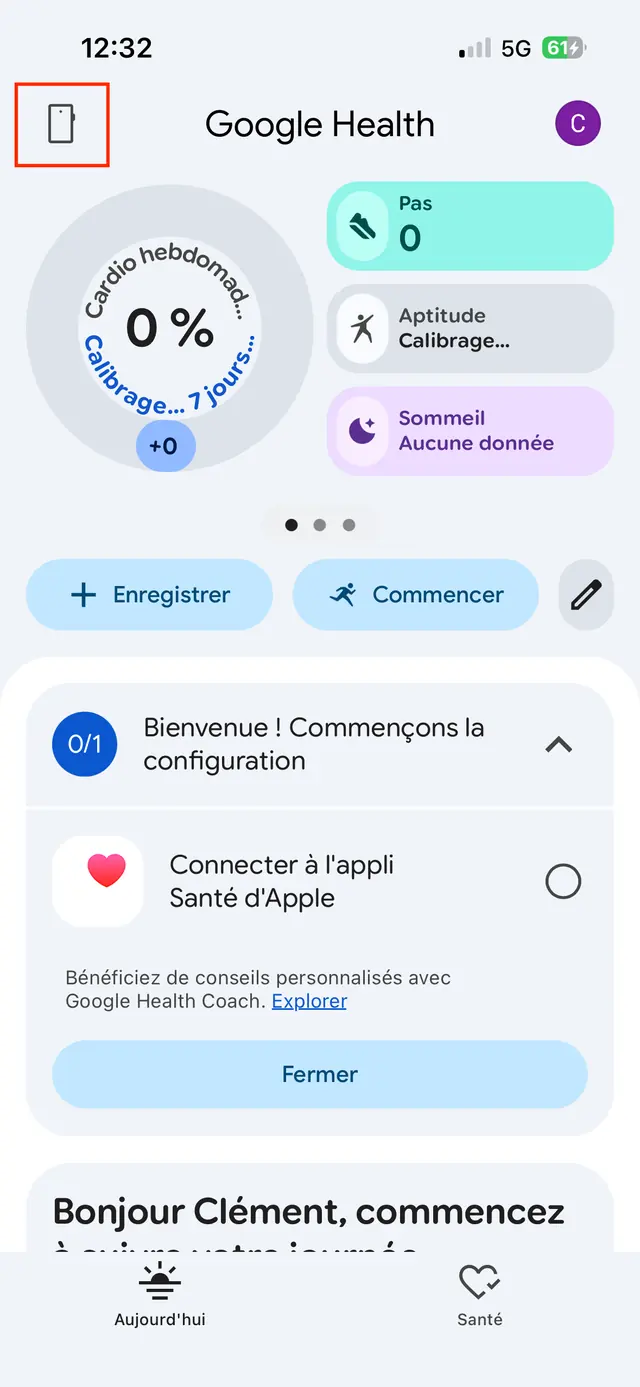
    Google Health home screen on iPhone, with the Connections icon highlighted top left.
  3. 3

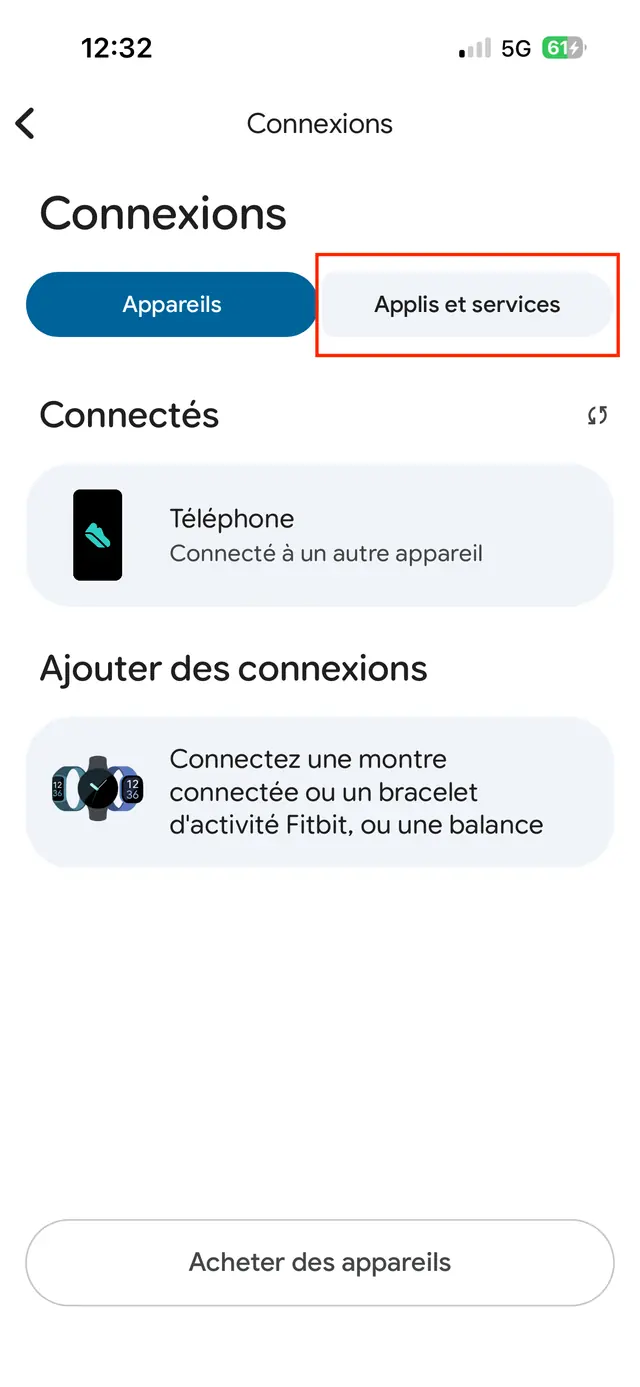
    Open the Apps & services tab.

    Google Health Connections screen, with the Apps & services tab highlighted.
  4. 4

    Under “Add connections”, tap Apple Health.
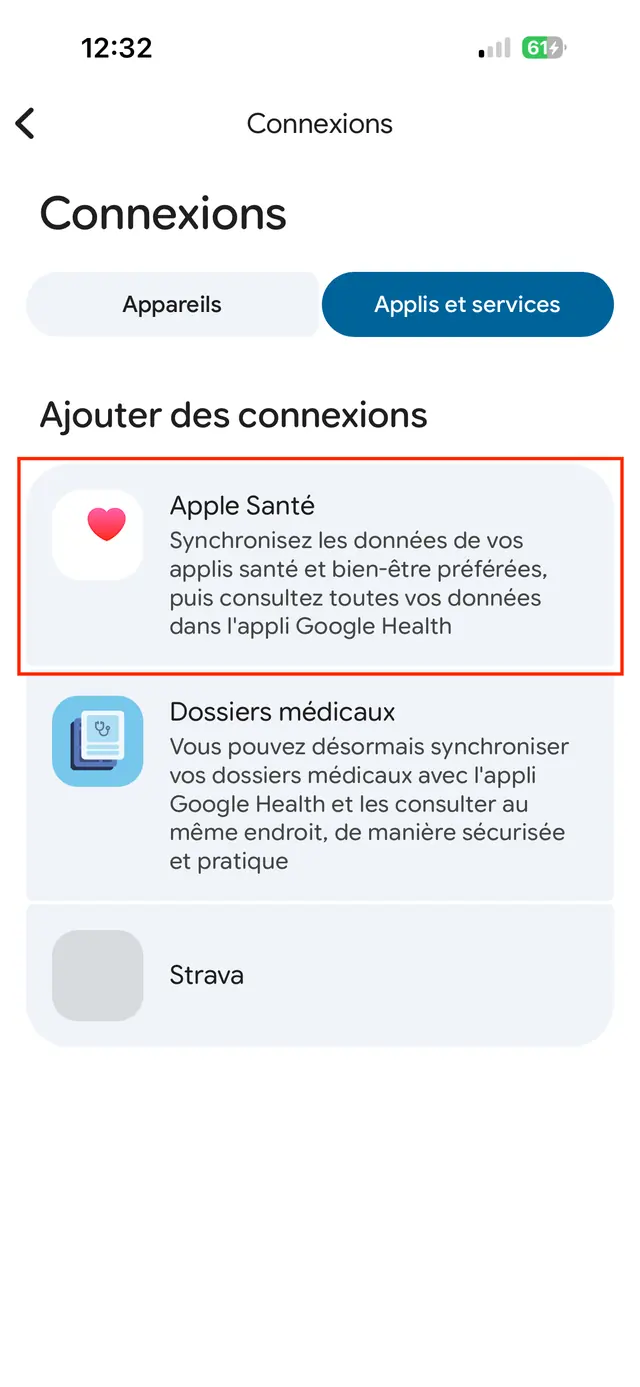
    Google Health Apps & services tab, with the Apple Health entry highlighted.
  5. 5

    On the Health Access screen, tap Turn On All, then Allow.
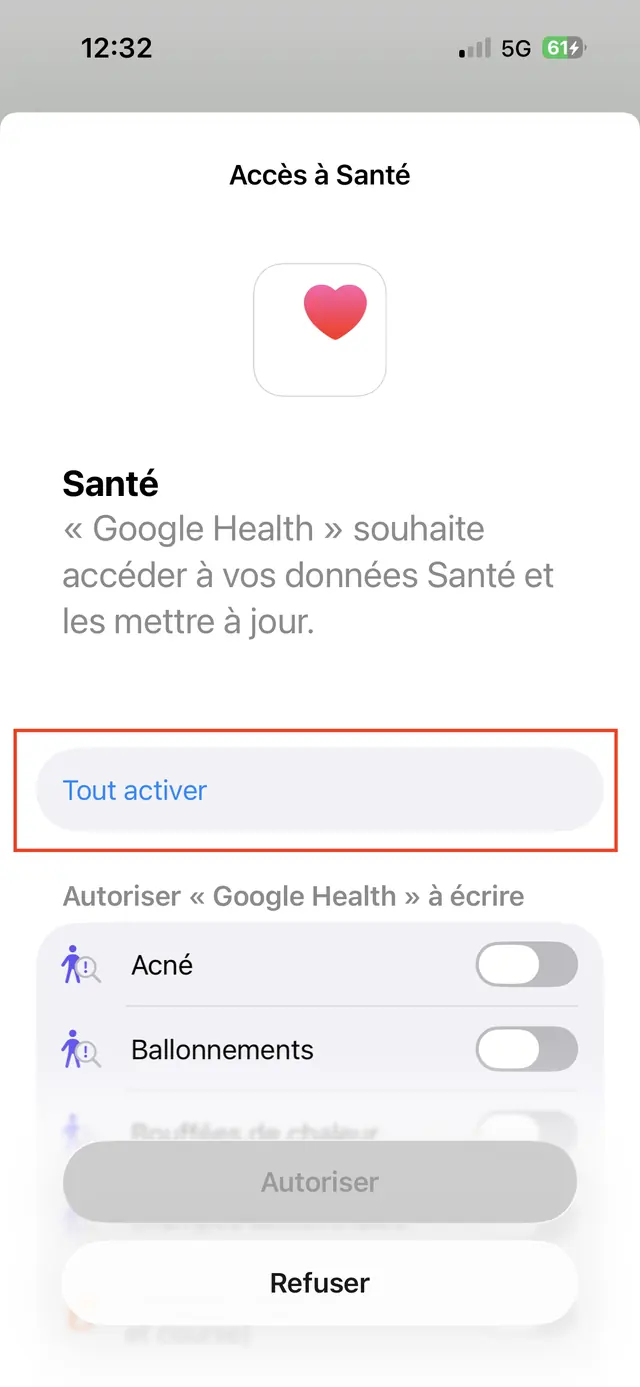
    iOS Health Access screen asking to let Google Health write your data, with the Turn On All option highlighted.

What next?

Open Sapiens Rank: your data is read every time the app opens. If nothing shows up, check in Apple Health that Google Health (Fitbit) is allowed to write every category.

Not on Sapiens Rank yet?

Turn your steps, sleep and workouts into Sapies, conquer territories with your friends and climb the world leaderboard.

Download on the App StoreGet it on Google Play